Enabling DQLabs in erwin Data Intelligence (erwin DI) allows erwin Data Quality APIs to pull environment connection information from erwin DI and create catalogs in erwin Data Quality. You can add datasets and views to the catalogs and run data profiling.
Once the data quality analysis is complete, erwin Data Quality displays data quality analysis for catalogs (environments), datasets (tables), attributes (columns), and views. You can sync the analysis results to erwin DI and view them in the Metadata Manager.
Data quality analysis is available for environments using Oracle, Salesforce, Snowflake, MySQL, MSSQL, Hadoop, and PostgreSQL database types.
Before running data profiling, ensure the following pre-requisites are met:
- Configure erwin Data Quality in erwin DI. To configure erwin Data Quality, refer to the Configuring Data Profiling topic.
- Switch the Enable DQ Sync option on for the environment. To enable this option, refer to the Managing Environments topic.
This topic walks you through adding datasets and views, and running data profiling on the catalog for Sql Server database as an example. Similarly, you can run data profiling for other databases.
To run data profiling on a catalog, follow these steps:
- Go to Application Menu > Data Quality.
Your erwin Data Quality instance opens. Login to erwin Data Quality (if asked). - On the erwin Data Quality menu, click
 (Admin User).
 - Under the admin user icon, click Settings.
- Click
 to expand menu.
 -
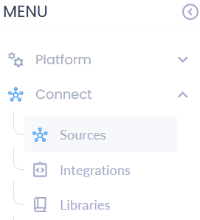
Expand Connect and click Sources.
-
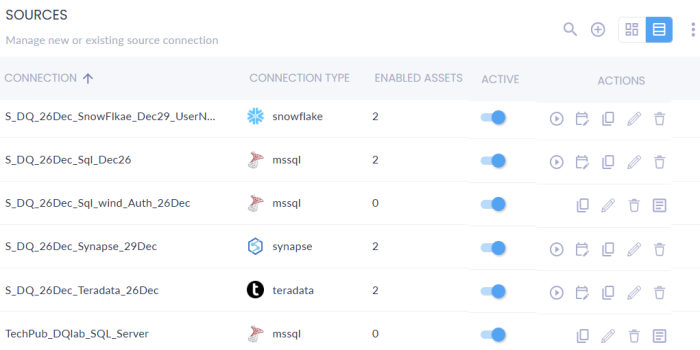
The Sources page appears and displays a list of connections.
-
In the Actions column, click
 for the connection you want to modify. For example, TechPub_DQlab_SQL_Server.
 -
The Connection Details page appears.
- Enter or select appropriate values in the fields. Fields marked with a red asterisk are mandatory. Refer to the following table for field descriptions:
-
Username and Password: Specifies the standard authentication method where users log in using a unique username and a secure password.
-
Windows Authentication: Specifies the authentication method that leverages Windows credentials to authenticate users based on their Windows login information automatically.
- Click Connect.
- Select the required datasets and views, then click Connect.
- Click Yes.
- On the catalog configuration page, under the Actions column, use the following options:
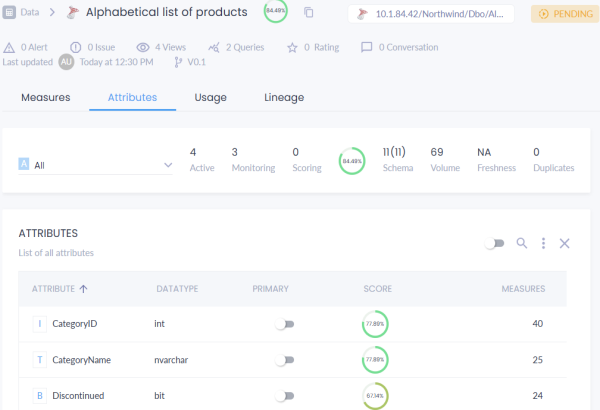
- Click the Attributes tab to view a list of all attributes and DQ scores.
The Settings page appears.
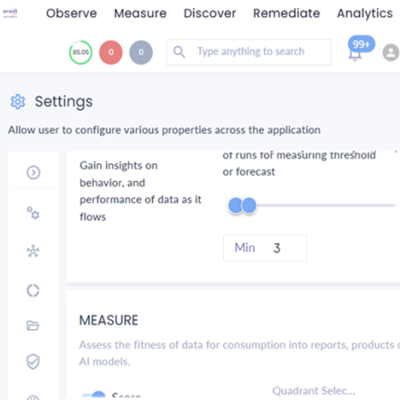
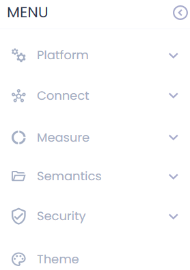
The menu expands and displays additional options.
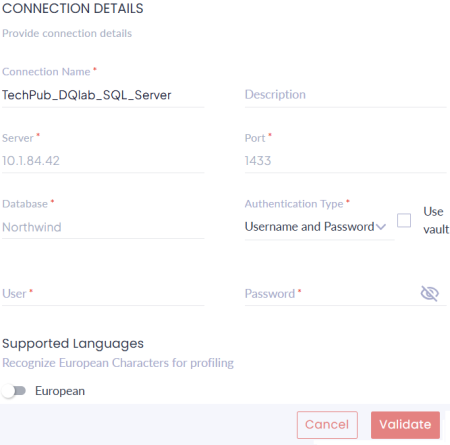
|
Field Name |
Description |
|---|---|
|
Connection Name |
Specifies the name of the connection. For example, Sql Server. This field is auto-populated with the connection name which now includes the system name appended to the environment name. You can edit the name as required. |
|
Description |
Specifies the description of the connection. |
|
Server |
Specifies the server number. This field is auto-populated with the server number. |
|
Port |
Specifies the port number. This field is auto-populated with the port number. |
|
Database |
Specifies the name of the database. This field is auto-populated with the database name. |
|
Authentication Type |
Specifies the type of authentication. |
|
Use vault |
Enables retrieval of authentication credentials from a vault. Select this checkbox to retrieve credentials from a vault instead of entering them manually. |
|
User |
Enter the username. For example, sa |
|
Password |
Enter the password. |
|
Schema |
Specifies the name of the schema. This option is available only by clicking Validate after entering your username and password. |
|
Supported Languages |
Specifies whether European characters are recognized during data profiling. Switch the European option on to include European characters. |
|
Select Vault |
Specifies the vault from which credentials are retrieved. This option is available only when you select the Use vault checkbox. |
|
Vault Key |
Specifies the key used to access credentials in the selected vault. This option is available only when you select the Use vault checkbox. |
The catalog configuration page appears and displays datasets and views in the catalog.
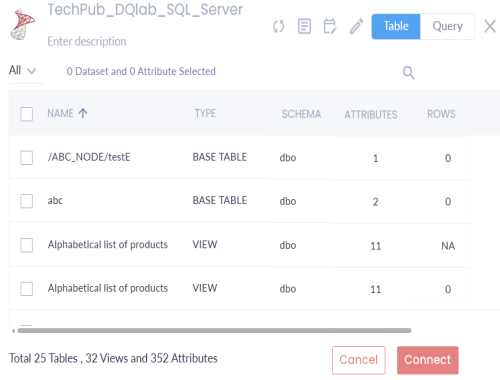
You can use the checkbox at the top to select all datasets and views.
A Confirmation pop-up appears.
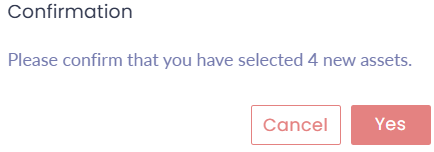
Data quality analysis might take some time, depending on the size of data in the catalog. You can click the View logs icon to view the status of the dataset and view.
Schedule (
 ): Use this option to schedule a data profiling job at predefined intervals.
Delete ( ): Use this option to delete the dataset or view.
After profiling data, the Discover menu opens and displays the Asset page. This page shows the data quality analysis of all assets in a card format including asset name, attributes, rows, DQ scores, alerts, and issues.
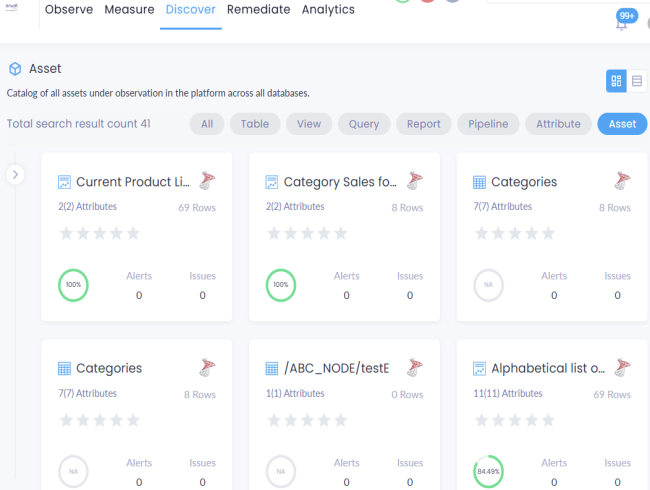
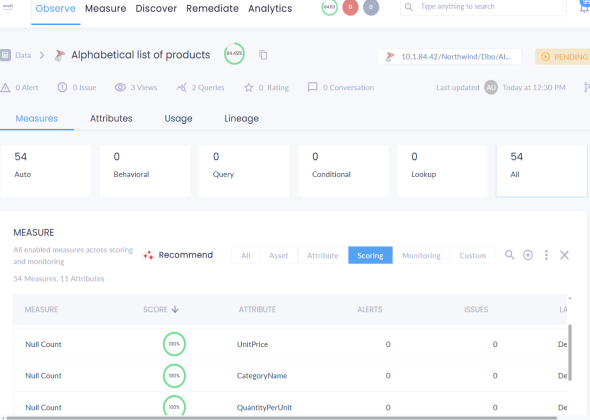
You can drill down to view detailed information. For example, click the Alphabetical list of products card.
The Observe menu opens and displays the Measures section, which provides the Data Quality (DQ) score along with detailed information about the dataset.
Also, you can drill down to view DQ scores for attributes.
You can sync these results to erwin DI and view them in Metadata Manager. To sync data quality analysis results, you need to schedule a sync job. For more information, refer to the Scheduling Jobs topics.
You can further drill down to view the detailed analysis of an attribute. To view the detailed analysis of an attribute, follow these steps:
- Under the Attributes tab, click the Select Attribute filter and select the required attribute for which you want to view the detailed analysis. Alternatively, you can click attribute under List of all attributes.
The Properties tab for the attribute appears. Also, you can view a comprehensive analysis of the data in tabular format and charts under the Profile section. For more information on charts, refer to the Data Quality Charts topic in the erwin Data Quality user guide.